How to use PDF Decrypter Pro
Remove the owner password and restrictions from a PDF you own in a few clicks — on Windows or macOS.
Run PDF Decrypter Pro
Open the program from Start Menu › Programs › PDF Decrypter Pro on Windows, or from Applications on macOS.

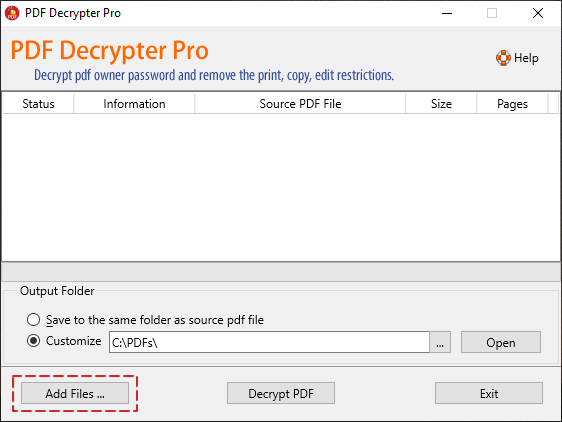
Add your PDF files
Click Add Files to select one or more PDF files to process, or simply drag and drop them into the window.
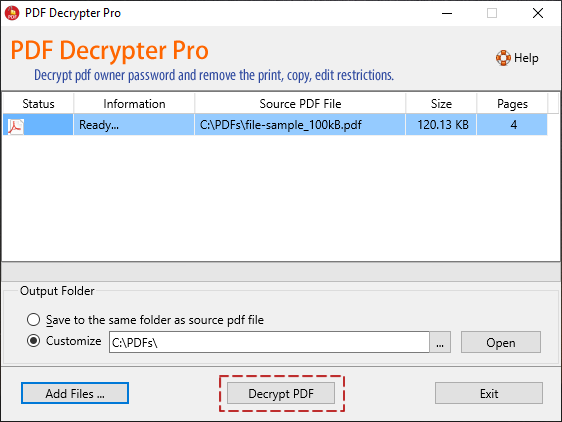
Click “Decrypt PDF”
Press Decrypt PDF to process every file in the list. Files that are not encrypted are skipped automatically.
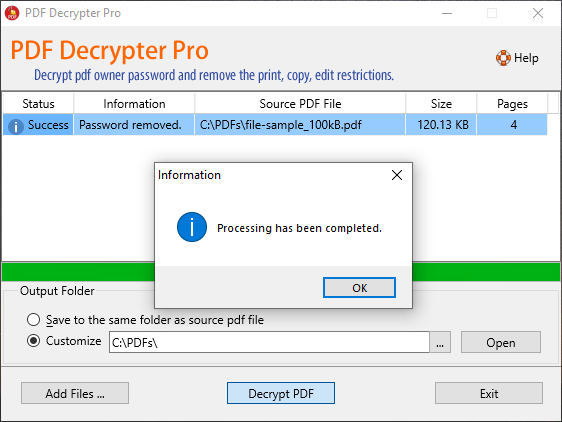
Confirm the result
A message confirms when all files have been decrypted successfully.
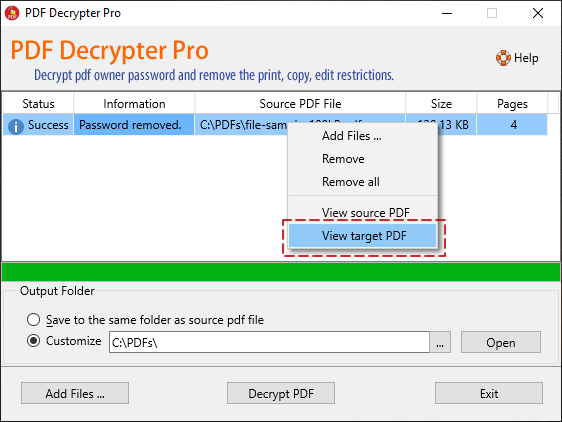
Open your unrestricted PDF
Right-click a finished file in the list to open it, or jump straight to its folder.
Important: Use PDF Decrypter Pro only on PDF files you created, own, or are authorized to modify. It is not intended to access copyrighted material you do not have rights to.
Haven’t downloaded it yet?
Get the free trial and follow this tutorial in minutes.